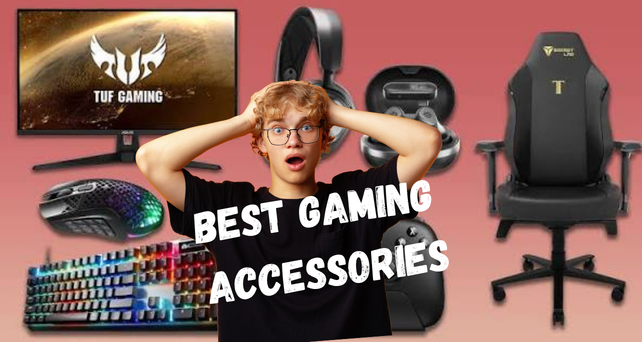
Top Gaming Accessories Every Gamer Needs in 2026
Best gaming accessories are the hardware peripherals — mice, keyboards, headsets, monitors, and controllers — that connect you physically to your game. The right ones reduce input lag, improve audio accuracy, and extend how long you can play without fatigue. The wrong ones become the bottleneck your GPU never gets blamed for.
Why Your Current Gear Is Probably Costing You Matches
You’ve upgraded your GPU. Maybe added RAM. And you’re still losing clutch moments you should be winning.
Here’s the thing: most performance problems in 2026 aren’t inside the PC. They’re between your hands and the screen. A mouse sending position data 125 times per second instead of 1,000. A monitor running at 60Hz because Windows defaulted it that way on install. A headset that smears directional audio into a muddy blob when someone flanks you.
According to ResearchAndMarkets.com (February 2026), the global gaming accessories market is growing from $13.09 billion in 2025 to a projected $23.14 billion by 2031 — a 9.96% CAGR driven primarily by esports professionalization and the demand for lower-latency interfaces. That growth isn’t driven by people buying RGB for aesthetics. It’s driven by players who’ve felt the difference and won’t go back.
Look — if you’re losing matches on a setup that benchmarks fine, the peripheral is almost always the answer. This guide tells you which one to fix first.
What “Best Gaming Accessories” Actually Means in 2026
Most people assume the most expensive peripheral in any category is the best one. The data says otherwise.
The right accessory is the one that removes your specific bottleneck — not the one with the highest polling rate if you’re playing Elden Ring solo, and not a $330 headset if you already own one that works. The spec that matters changes with your game type, your platform, and how many hours per week you play.
Or maybe I should say it this way: a $35 mousepad upgrade will do more for a player running a budget Logitech mouse at low sensitivity than a $160 flagship mouse on a worn-out cloth desk pad.
Counter-intuitive insight: I’ve seen conflicting data on this — some sources rank monitor upgrades above everything, others put the mouse first. My read is that it depends on genre. Competitive FPS players gain more from a high-refresh monitor. Strategy and RPG players gain more from a precise, ergonomic mouse. Start with your primary genre.
Quick Comparison: Accessory Priority by Gamer Type
| Accessory | Best For | Key Benefit | Limitation |
| High-refresh monitor | Competitive FPS/Battle Royale | Smoother motion, lower perceived latency | Useless if GPU can’t sustain high FPS |
| Mechanical keyboard | All PC genres | Consistent actuation, no missed inputs | Overkill for console-only players |
| Wireless gaming mouse | FPS, MOBA, RTS | Freedom of movement, sub-1ms latency | Higher cost than wired equivalent |
| Gaming headset | Multiplayer, immersive single-player | Positional audio, mic clarity | Won’t help if game audio mix is poor |
| Pro controller | Console FPS, action games | Back paddles, trigger locks, reduced drift | Learning curve on paddle placement |
Best Gaming Accessories for PC Players
Best Mouse: Razer DeathAdder V4 Pro
The DeathAdder V4 Pro is built around Razer’s Focus Pro 35K optical sensor. It’s accurate on fabric, hard pads, and glass without adjustment. Battery runs 90 hours between charges. At 128g, it isn’t in the ultralight category — but the ergonomic right-handed shape holds up over 4-hour sessions in a way that 60g mice frankly don’t.
For players who prefer symmetrical mice under 60g, the Razer Viper V4 Pro matches the sensor quality in a lighter shell. Both use HyperSpeed wireless, which consistently hits sub-1ms latency in benchmarks.
What most guides skip: A wireless mouse is only as good as its dongle placement. If your USB dongle is plugged into a rear motherboard port under your desk, you’re adding distance and potential interference. Use the included USB extension cable and put the dongle within 30cm of your mouse. That one change often fixes any micro-stuttering issues users blame on the mouse itself.
Price range: $120–$160
Best Keyboard: Razer Huntsman V3 Pro (Competitive) vs. iBUYPOWER MK9 RGB (Budget)
Razer Huntsman V3 Pro vs. iBUYPOWER MK9 RGB: The Huntsman V3 Pro is better suited for competitive shooter players who counter-strafe frequently, because its 8,000Hz polling and rapid trigger mode reset key activation mid-travel rather than at a fixed depth. The MK9 RGB works better when you’re entering PC gaming for the first time or on a strict budget. The key difference is whether you need Hall Effect precision or just a reliable mechanical switch upgrade from membrane.
The Huntsman V3 Pro is genuinely impressive hardware. But a real caveat: some ranked anti-cheat systems flag SOCD inputs that rapid trigger enables. Before enabling every feature in competitive queues, check the game’s current input ruleset. Valorant, CS2, and Apex have all updated their stances on this within the last 12 months.
For players who want mechanical quality without competitive-tier pricing, the Keychron K2 Pro (~$95) is the most practical middle-ground recommendation: hot-swappable switches, Bluetooth for desk flexibility, and build quality that lasts.
Price range: Huntsman V3 Pro ~$220 | MK9 RGB combo ~$70
Best Monitor: The Resolution-vs-Refresh Trade-Off
To choose the right gaming monitor, follow these steps:
- Identify your primary game genre — competitive FPS or immersive/story titles
- Check your GPU’s average FPS output at each resolution
- If your GPU sustains 144fps+ at 1080p, choose high-refresh 1080p
- If your GPU is capped below 144fps at 1440p, choose 1440p at a lower refresh rate
- Never buy a 4K monitor for competitive gaming — the GPU tax isn’t worth it in 2026
1080p pick — ASUS VG279QE5A (~$180): Fast IPS panel. Stays competitive in CS2 and Valorant where raw framerate beats pixel density every time. Mid-range GPUs push 200fps+ at 1080p with settings dialed.
1440p pick — MSI MAG 274QF X24 (~$310): 240Hz at 2560×1440. The visual jump from 1080p is immediately obvious in open-world and RPG titles. Modern GPUs handle 1440p cleanly in most games.
After buying any monitor, open Windows Settings → System → Display → Advanced Display Settings and manually set refresh rate to the panel’s maximum. It defaults to 60Hz on most fresh installs. This is a free performance upgrade millions of players have never made.
Best Headset for PC: SteelSeries Arctis Nova Pro Wireless (~$330)
Active noise cancellation. Hot-swappable batteries. ClearCast Gen 2 microphone with genuine noise isolation. Cross-platform via USB and 3.5mm. Compatible with PC, PS5, Xbox, and mobile without re-pairing.
It’s expensive. That’s the honest limitation.
For players who can’t justify $330, the SteelSeries Arctis Nova 3X (~$100) drops ANC and the hot-swap battery but keeps the comfortable fit, 2.4GHz wireless, and cross-platform dongle. Most players won’t miss the premium features until they game next to a loud fan or roommate.
Some experts argue the Sony Pulse Elite ($150) beats both at mid-range. That’s valid for PS5-primary players — its lossless audio for PlayStation is genuinely superior on Sony hardware. But if you game across PC and Xbox, the Arctis Nova 3X’s universal dongle compatibility wins.
Best Mousepad: SteelSeries QcK Heavy XXL (~$35)
One sentence. This is the highest-ROI upgrade most PC gamers haven’t made.
At 900×300mm it covers your full arm movement range at low sensitivity settings. The heavy rubber base doesn’t curl after six months the way budget pads do. For professional-grade surface consistency, the Artisan Ninja FX Zero (~$100) is what tournament players use — but for 95% of players, the QcK Heavy is the better value.
Best Gaming Accessories for Console Players
This is the section most PC-focused guides skip entirely. That’s a gap worth filling.
Best Controller Upgrade
Xbox / PC: The Xbox Elite Wireless Series 2 (~$180) adds rear paddles for actions like jumping and reloading without lifting your thumb from the stick, adjustable trigger locks for faster fire input, and remapping via the Xbox Accessories app. The GameSir G7 Pro (~$80) is the most credible budget alternative — comfortable, low-latency, and well-built for the price. Its limitation is that Xbox wireless connectivity requires a separate adapter rather than native pairing.
PlayStation: The DualSense Edge (~$200) includes replaceable analog stick modules — the single most important feature for console players who’ve watched expensive controllers die from drift. The customizable trigger resistance is a meaningful quality-of-life improvement for long sessions.
Best Storage Expansion for Console
AAA titles in 2026 regularly exceed 150–200GB. The 825GB PS5 drive fills up faster than most players expect.
For PS5: a compatible M.2 NVMe SSD at 5,500MB/s read speed or faster fits the console’s internal expansion slot. Samsung 990 Pro and WD Black SN850X are the two most consistent performers (~$90–$120 for 1TB).
For Xbox Series X/S: the Seagate Storage Expansion Card (~$120) is the only licensed option that maintains full Series X speeds. Third-party alternatives exist but throttle under sustained load. Worth paying for the official card.
External HDDs are fine for storing games, not running them. A game installed on an external HDD will load at last-generation speeds. Don’t use them for next-gen titles.
Wireless Gaming Accessories Worth Buying in 2026
Wireless has been viable for years. In 2026 it’s genuinely competitive with wired for almost all use cases.
The shift that matters: proprietary 2.4GHz dongles (Razer HyperSpeed, Logitech Lightspeed, SteelSeries Quantum Wireless) deliver sub-1ms latency. Standard Bluetooth introduces 10–15ms — noticeable in fast games. If you’re buying wireless gear and the box says “Bluetooth only,” it’s not for competitive play.
The one exception where wired still wins: tournament-level polling rates. Some competitive players prefer wired mice at 8,000Hz because wireless dongles can introduce micro-variance at extreme polling under specific hardware setups. For the other 99% of players gaming at 1,000Hz, this is irrelevant.
Avoid: Wireless keyboards and mice marketed at “gaming” that only list Bluetooth specs. Check the box for a USB dongle. If it’s not there, it’s not a competitive-grade wireless device.
Gaming Accessories for Beginners: Start Here
Upgrading your setup doesn’t have to be expensive. It has to be ordered correctly.
Step 1 — Fix your inputs first. On PC, a mechanical keyboard and optical mouse are the foundation. The iBUYPOWER MK9 RGB combo covers both for ~$70. On console, stick with the stock controller until you’ve logged 100+ hours — then assess whether back paddles or trigger locks would change how you play.
Step 2 — Fix your display. If you’re gaming on a 60Hz monitor or a TV, a 144Hz display is the single most visually impactful upgrade available. You cannot un-see 144Hz once you’ve used it.
Step 3 — Fix your audio. A headset with surround sound or 3D audio changes competitive multiplayer permanently. Hearing where footsteps come from before you see the player is a skill advantage, not an aesthetic one.
Step 4 — Everything else. Ergonomic chairs, RGB lighting, capture cards, and larger desks improve quality of life. None of them improve your performance. Add them once steps 1–3 are solid.
The Tariff Issue: What It Actually Means for Your Purchase
Most gaming accessories are manufactured in China. In 2025, US import tariffs on Chinese goods reached 145%, and the impact on buyers has been direct and visible.
8BitDo suspended shipments from its Chinese warehouse to the US entirely, affecting its Retro Mechanical Keyboard, Ultimate 2 controllers, and Bluetooth controller lineup. Razer paused shipping on parts of its hardware range. Hyte halted certain US-bound PC case shipments. Nintendo raised Switch 2 accessory prices citing “changes in market conditions.”
What this means for you right now:
Budget brands that were exceptional value at $40–$60 may now cost 20–40% more — or simply be out of stock through direct channels. Amazon listings may still have pre-tariff inventory from US warehouses. Once that stock depletes, prices on affected lines will climb.
Brands with diversified manufacturing — Logitech (some lines made in Vietnam and Malaysia), SteelSeries (European-produced products) — are more price-stable. When comparing two otherwise similar products, the one made outside China carries less pricing risk in the current climate.
Practical rule: If a product you want is in stock at normal pricing from a US-based fulfillment center, buying now is safer than waiting. This isn’t a sales tactic — it’s how inventory economics work when supply chains are disrupted.
Budget Picks at a Glance
Under $100 — Starter Kit
- iBUYPOWER MK9 RGB Keyboard + Mouse combo (~$70)
- SteelSeries QcK Heavy XXL mousepad (~$35)
$100–$300 — Serious Upgrade
- Razer DeathAdder V4 Pro wireless mouse (~$130)
- ASUS VG279QE5A 1080p 144Hz+ monitor (~$180)
- SteelSeries Arctis Nova 3X headset (~$100)
- Xbox Elite Wireless Series 2 controller (~$180)
$300+ — Competitive/Enthusiast
- Razer Huntsman V3 Pro keyboard (~$220)
- SteelSeries Arctis Nova Pro Wireless headset (~$330)
- MSI MAG 274QF X24 1440p 240Hz monitor (~$310)
Voice Search Q&A
Start with your monitor if it’s still at 60Hz, or your mouse if you play FPS games on a stock peripheral. Those two upgrades have the highest measurable impact on competitive performance.
If you can’t tell which direction footsteps are coming from in a multiplayer game, your headset’s positional audio is failing you. Directional clarity — not bass — is the spec that matters.
Wireless with a 2.4GHz dongle is competitive with wired in 2026. Avoid Bluetooth-only wireless for gaming — it introduces too much latency. Wired remains the safer choice for tournaments.
Check that your refresh rate is actually set to the monitor’s maximum in Windows Display Settings. It defaults to 60Hz on most installs. Also verify your game’s frame rate cap isn’t set below your monitor’s refresh rate.
Upgrade when drift, delayed inputs, or the absence of back paddles is costing you in-game decisions. Stock controllers are fine for casual play; competitive FPS and fast-action games benefit most from pro controllers.


Post Comment